


USER GUIDE
Login to GoPaperless Agent
1. Login with Mobile-ID
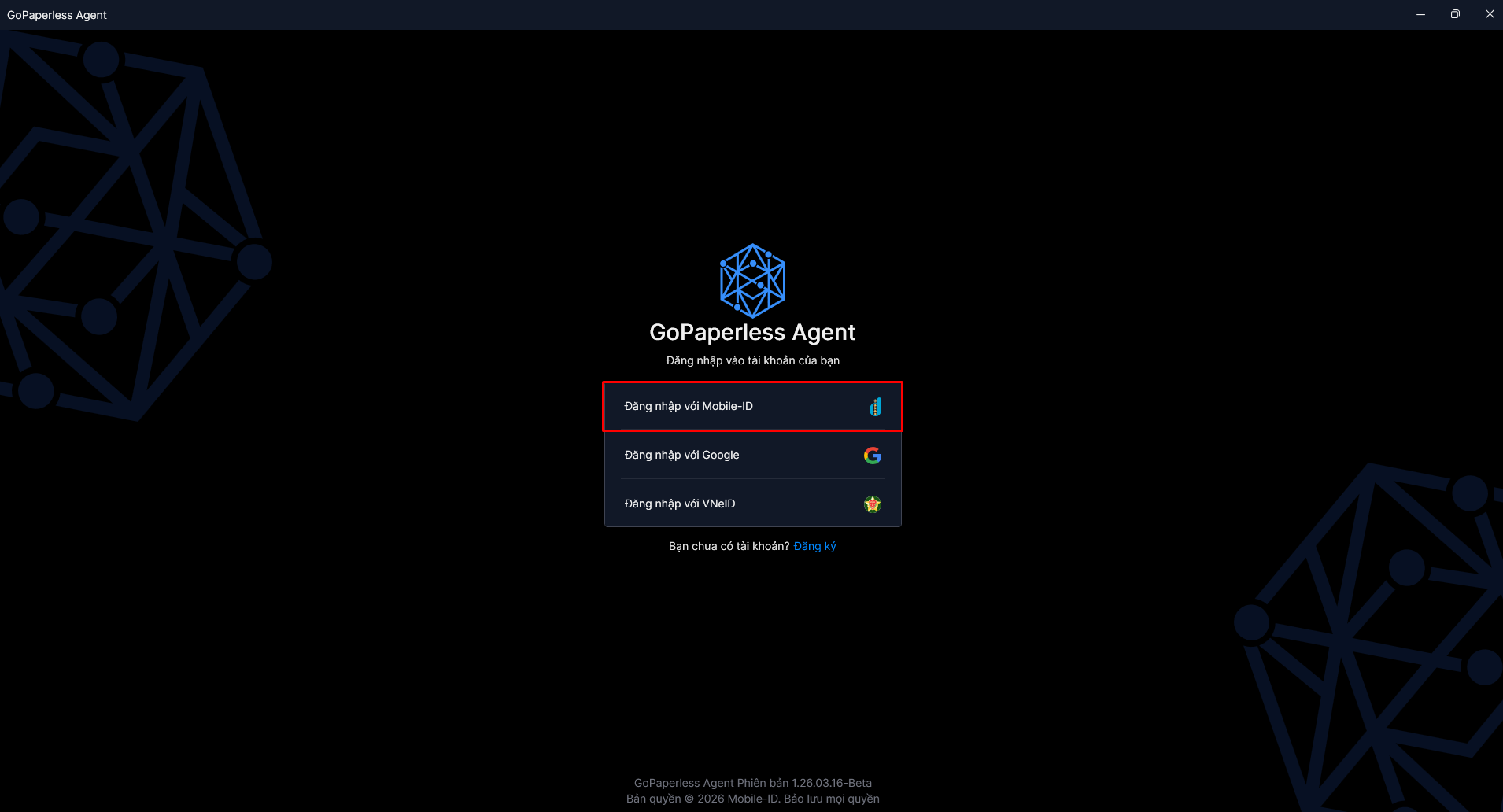
Step 1: Choose login method
On the login screen, click Login with Mobile-ID
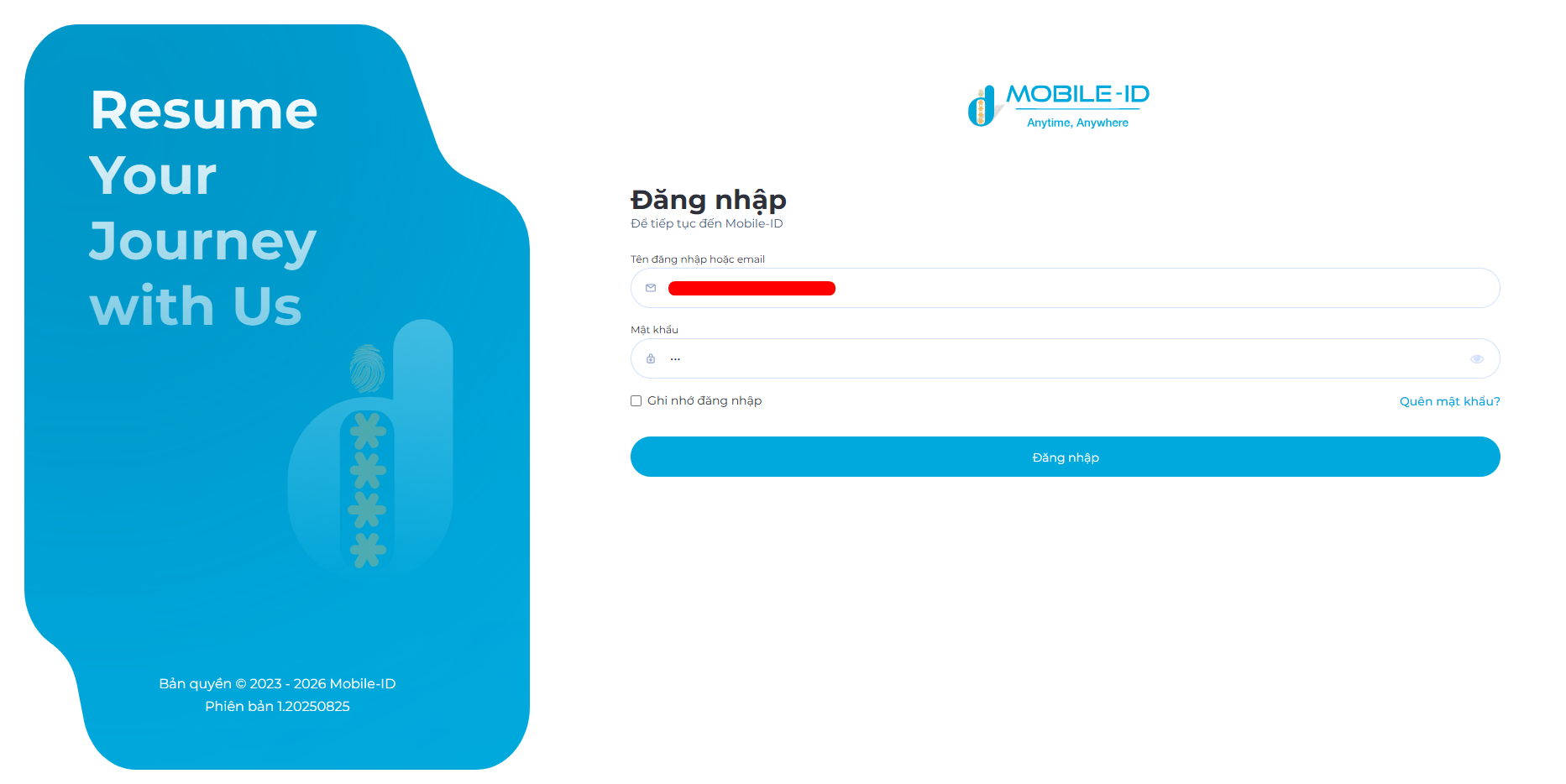
Step 2: Enter account information
Enter the following information:
- Username or Email
- Password
Then click Login
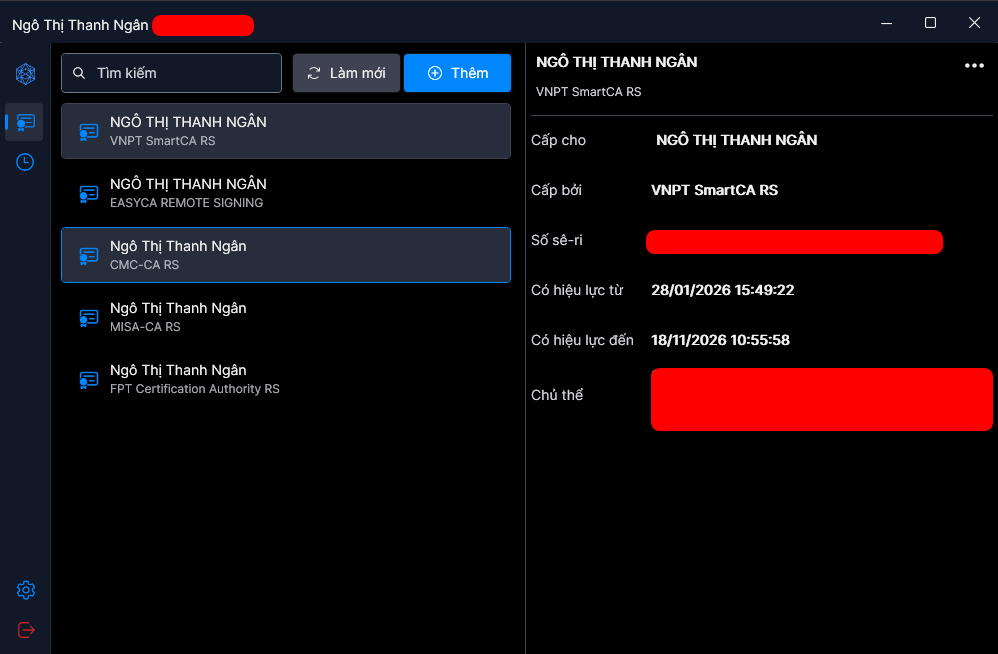
Step 3: Login successful
If the information is valid, the system will log in successfully and display: Digital Certificate Management Interface
Here, users can:
- View digital certificates list
- Add new certificate
- View signing history
- Manage certificate information
2. Login with Google
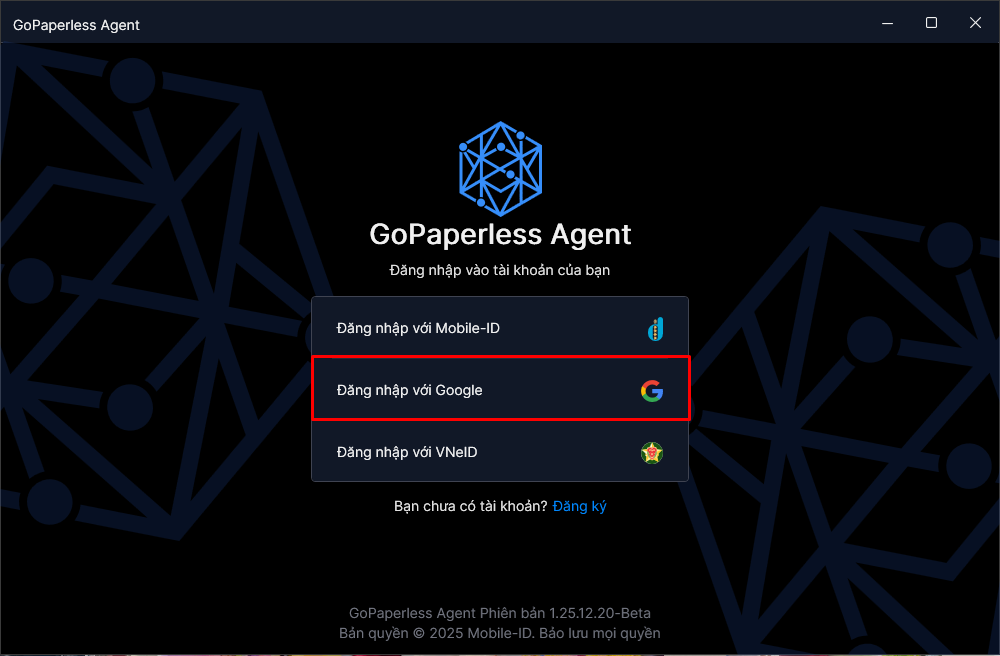
Step 1: Choose login method
On the login screen, click Login with Google
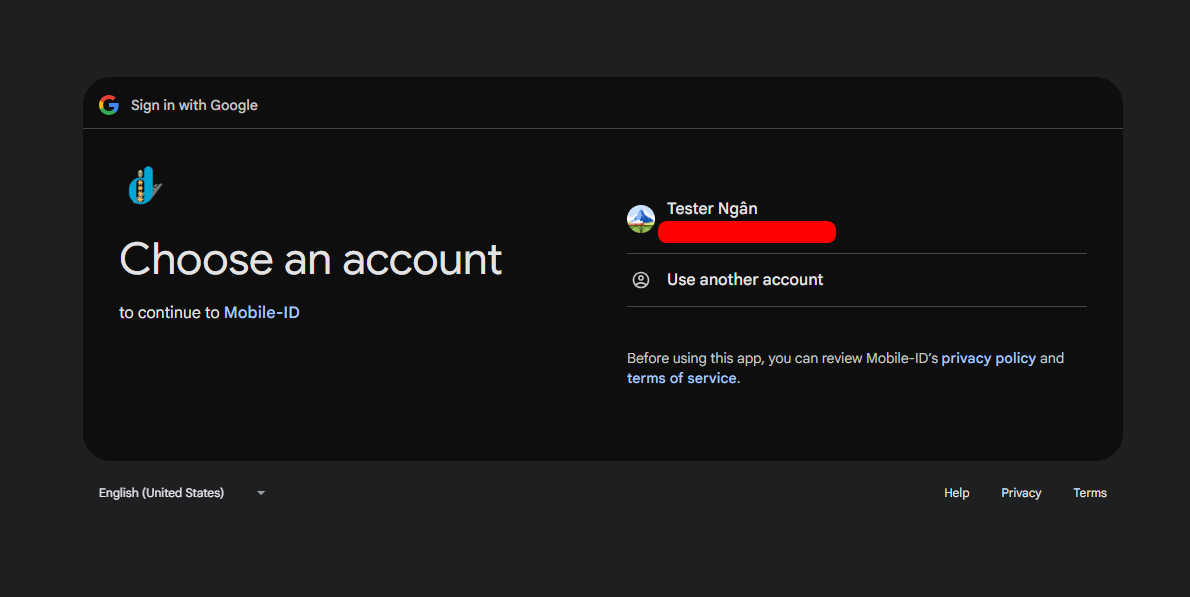
Step 2: Choose Google account
The system will redirect to the Google login screen.
- Select the Google account you want to use or
- Enter your Google email and password (if not logged in)
Step 3: Login successful
If the information is valid, the system will log in successfully and display: Digital Certificate Management Interface
Here, users can:
- View digital certificates list
- Add new certificate
- View signing history
- Manage certificate information
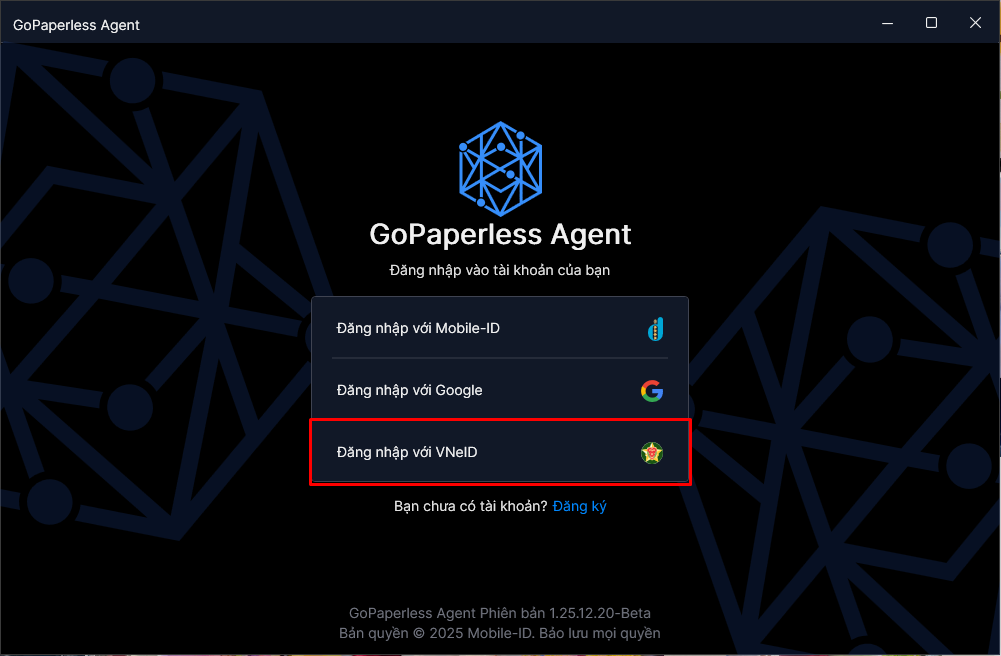
3. Login with VNeID
Step 1: Choose login method
On the application login screen, click: Login with VNeID
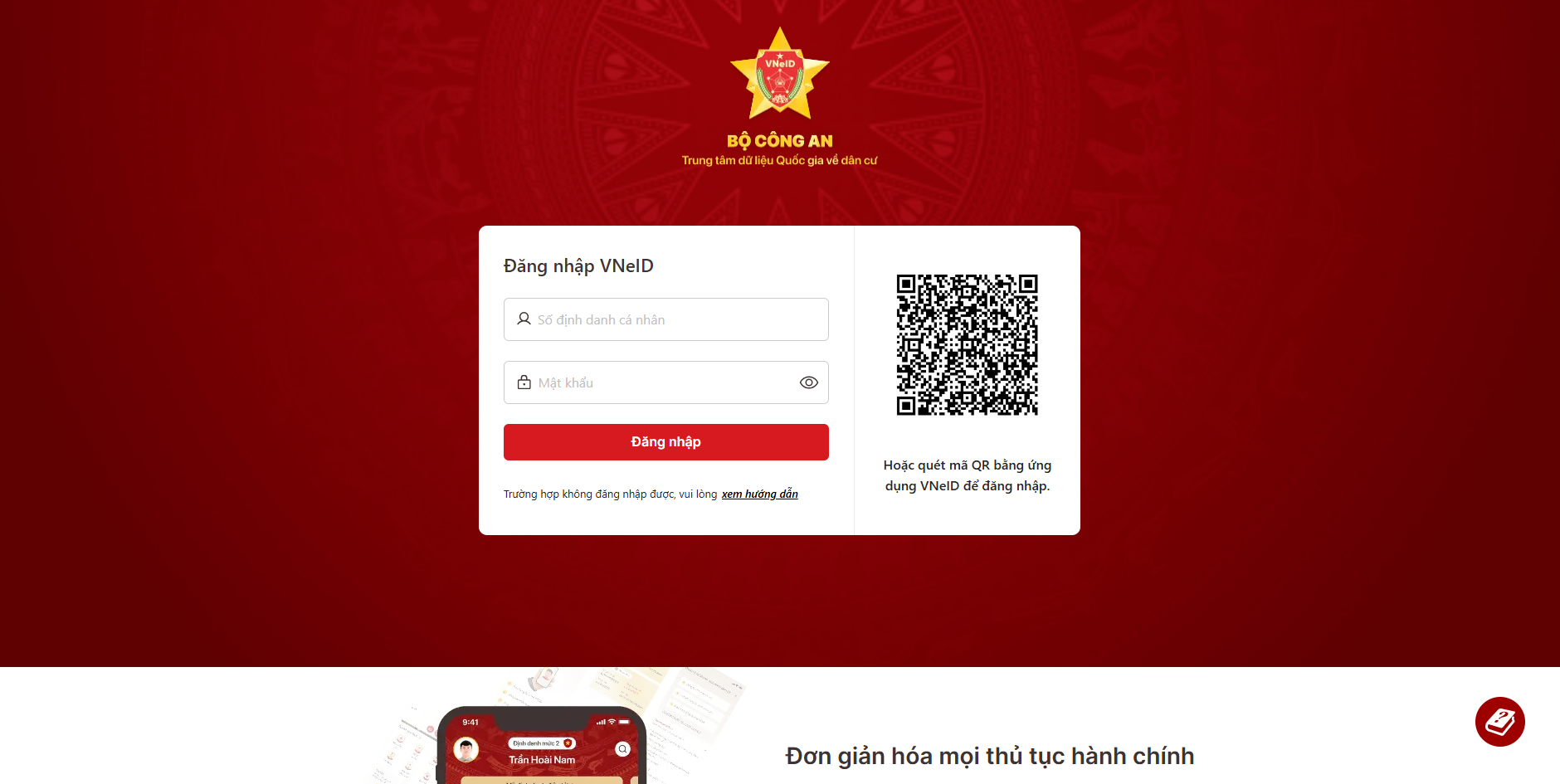
Step 2: National Public Service Portal screen
The system will redirect to the National Portal login screen.
There are 2 login methods:
- Login with Personal ID number and Password
- Login with QR code using VNeID app
This document demonstrates the QR code method.
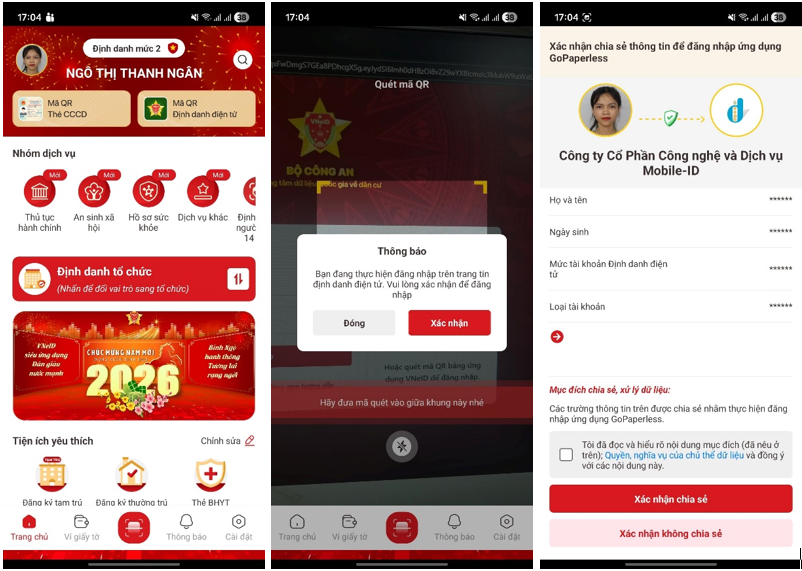
Step 3: Scan QR code with VNeID app
Follow these steps:
- Open the VNeID app on your phone.
- Select the QR code scanning function.
- Scan the QR code displayed on the computer screen.
- Confirm login on the VNeID app (if required).
Step 4: Login successful
If the information is valid, the system will log in successfully and display: Digital Certificate Management Interface
Here, users can:
- View digital certificates list
- Add new certificate
- View signing history
- Manage certificate information