


USE CASES
Sign with Acrobat Reader
Step 1: Open the PDF file using Adobe Reader.
Step 2: Select Use a certificate.
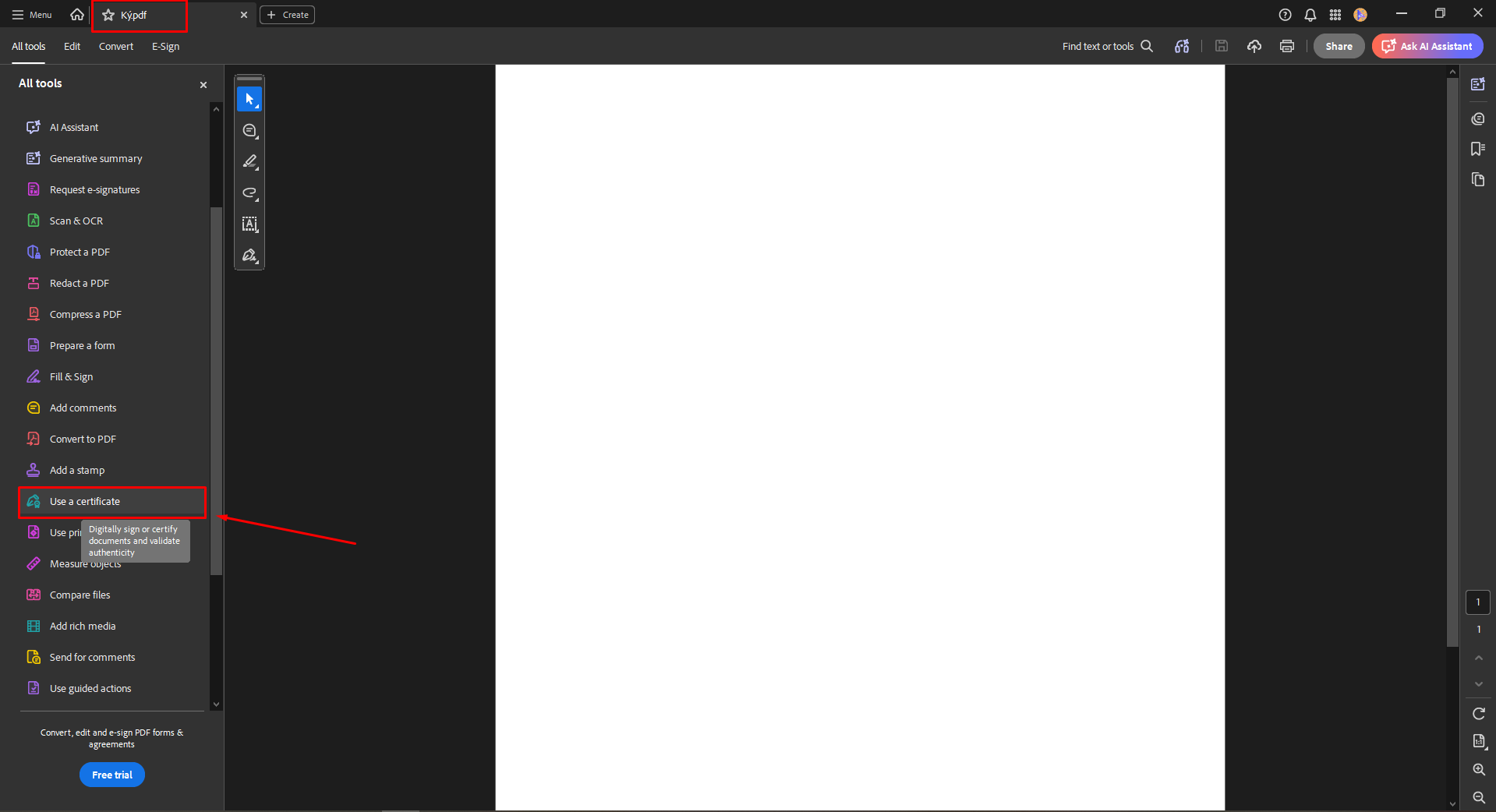
Step 3: Select Digitally sign.
Step 4: Click OK.
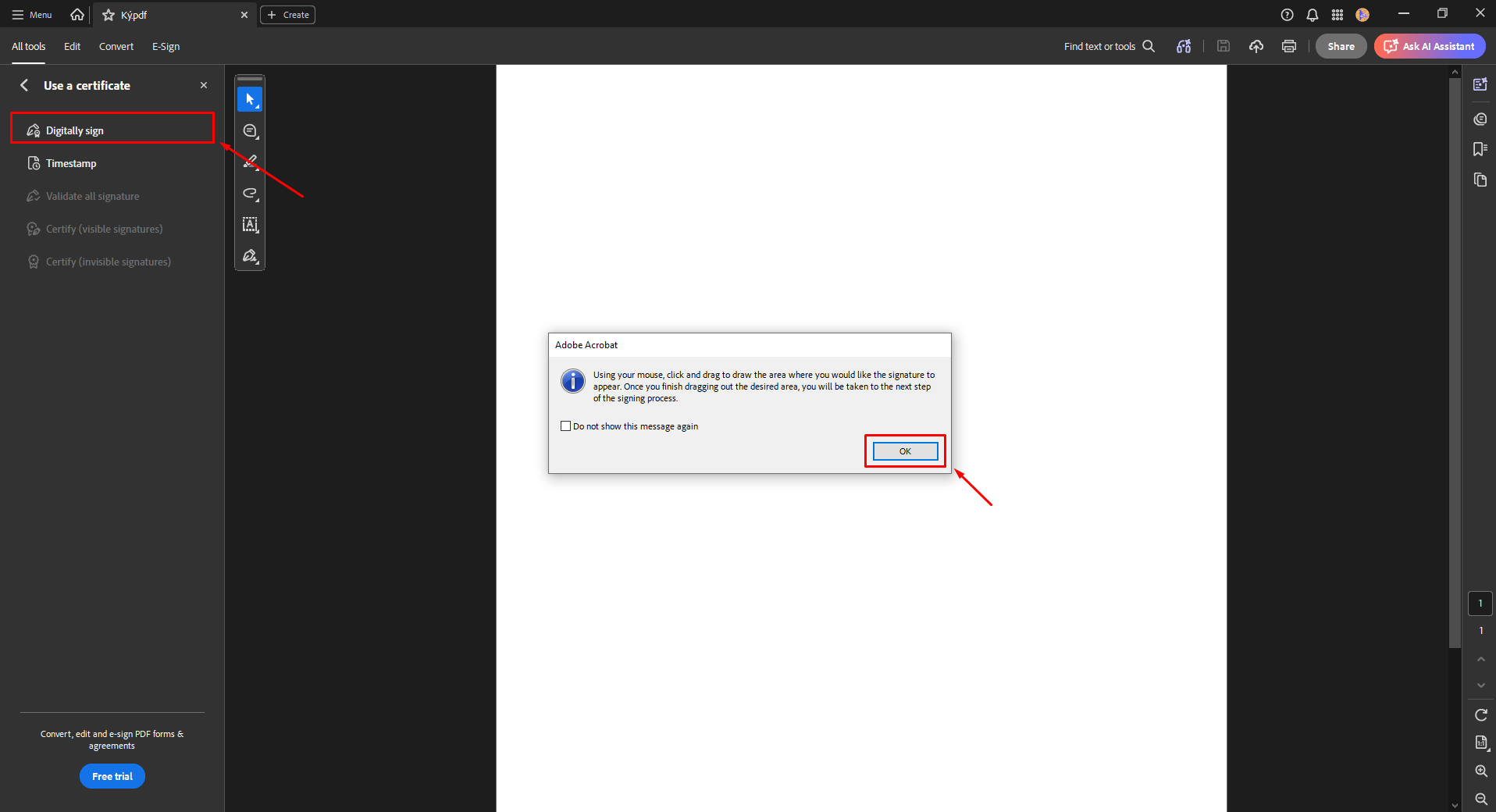
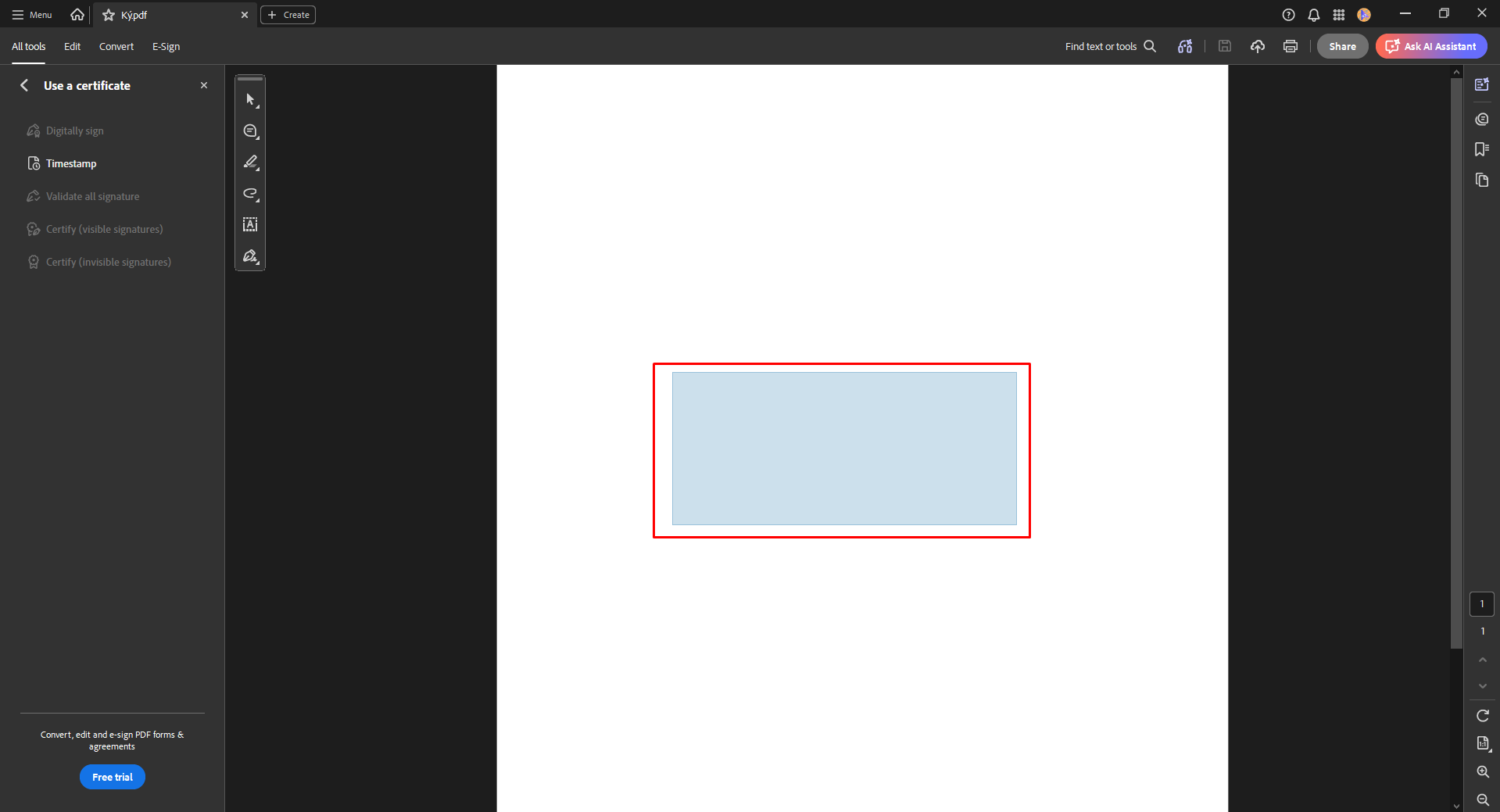
Step 5: Draw the signature area.
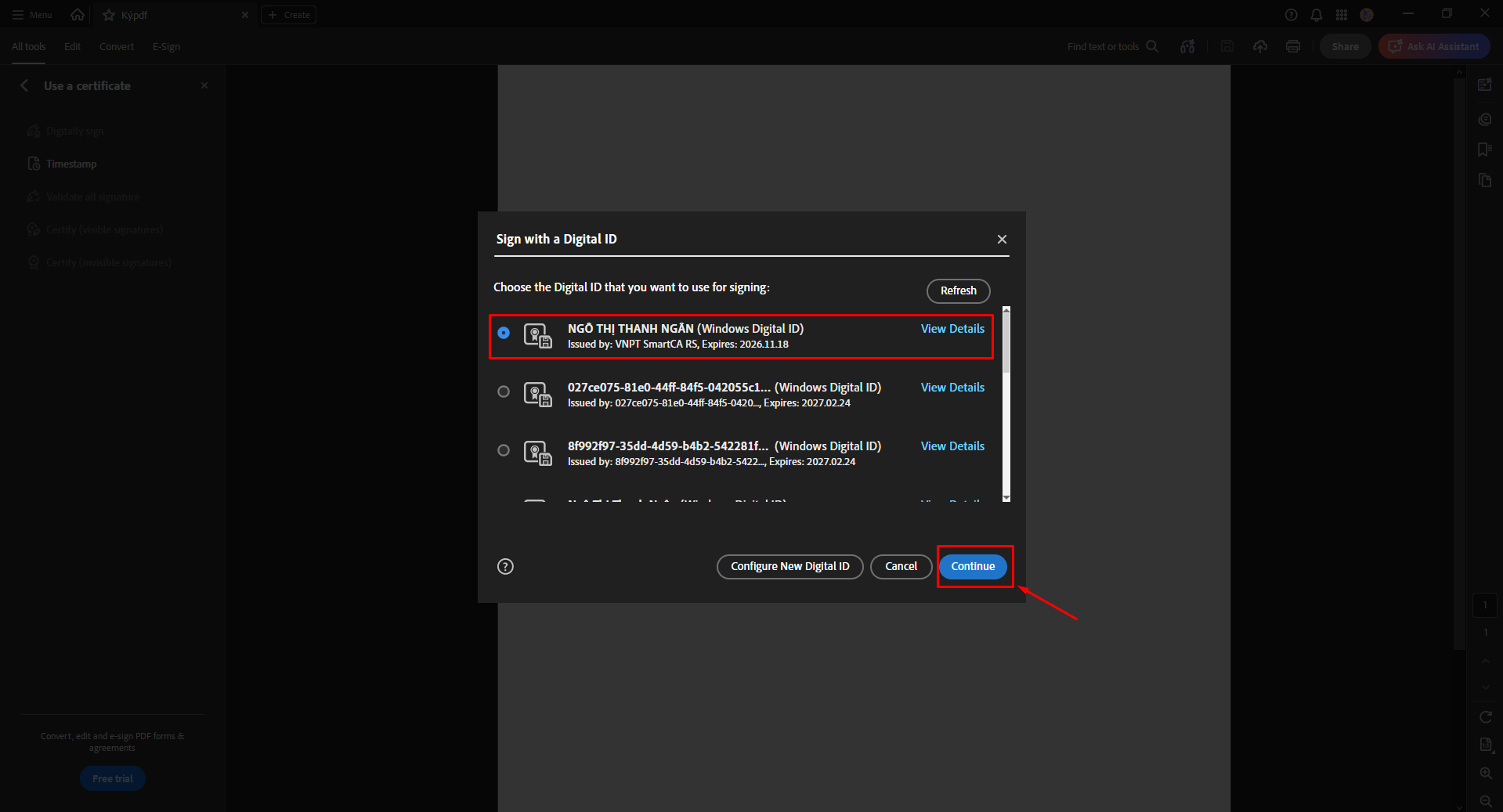
Step 6: Select certificate.
Step 7: Click Continue.
Step 8: Configure signature display (optional).
Step 9: Click Sign.
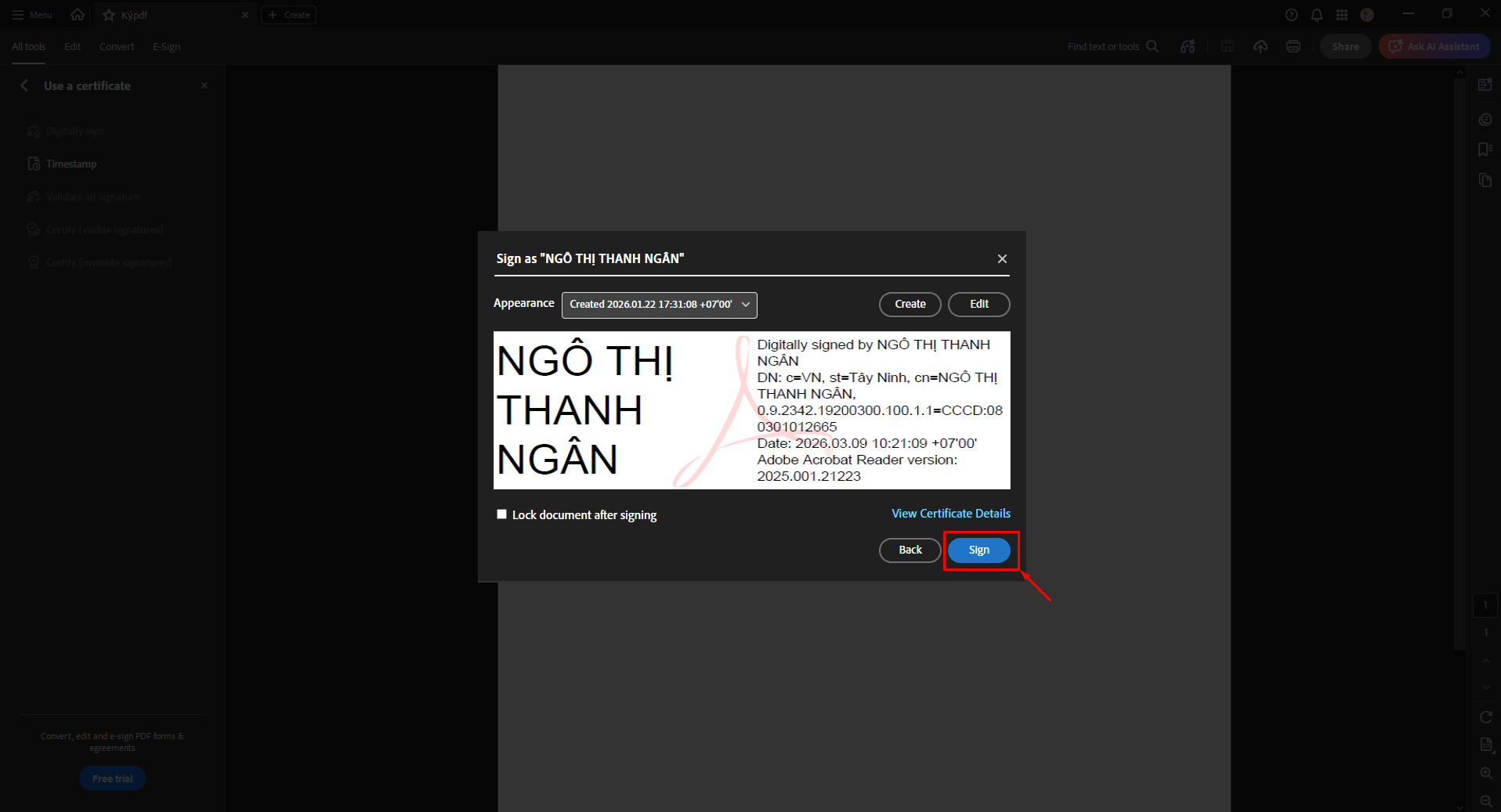
Step 10: An authentication screen will appear.
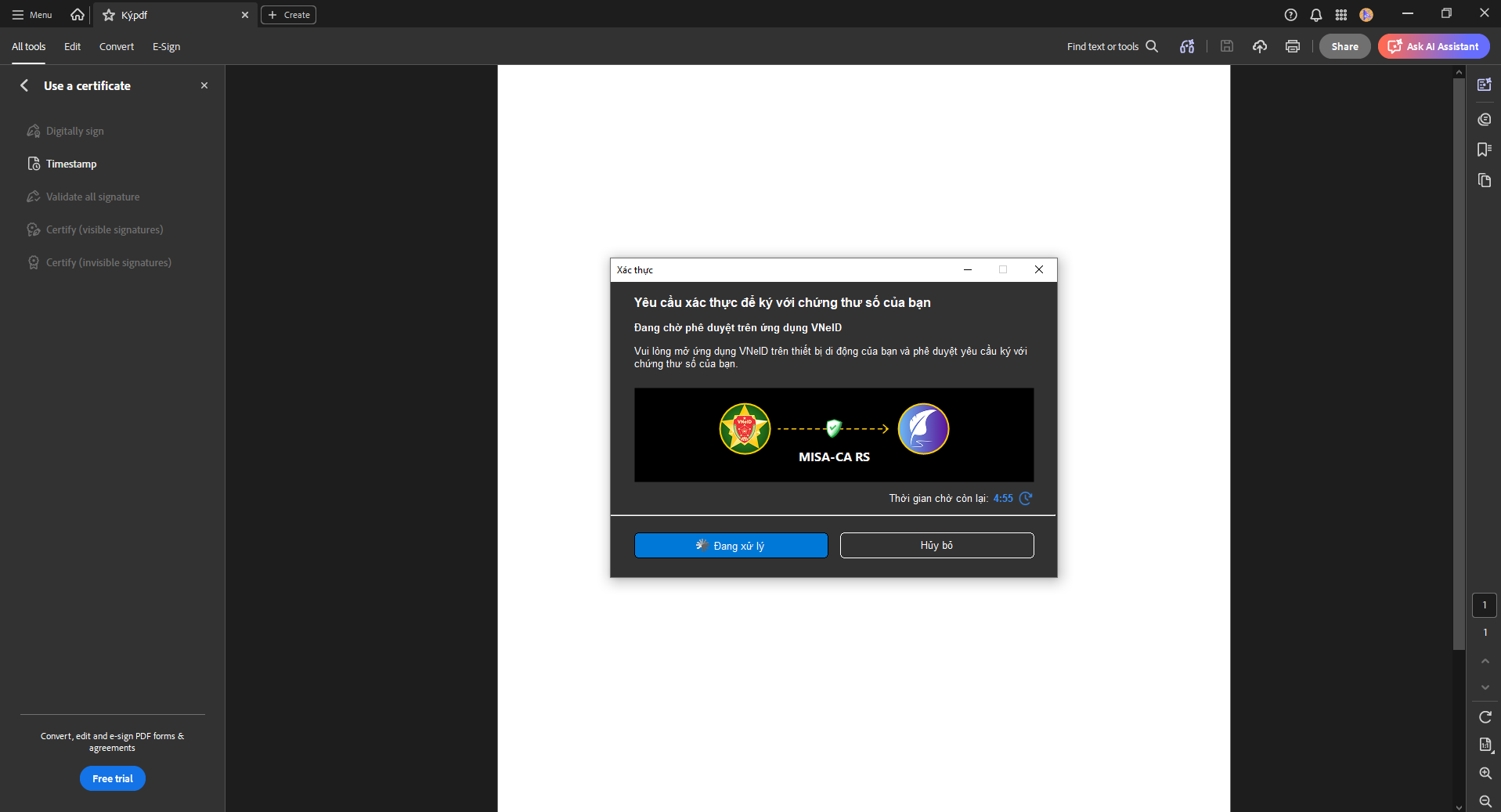
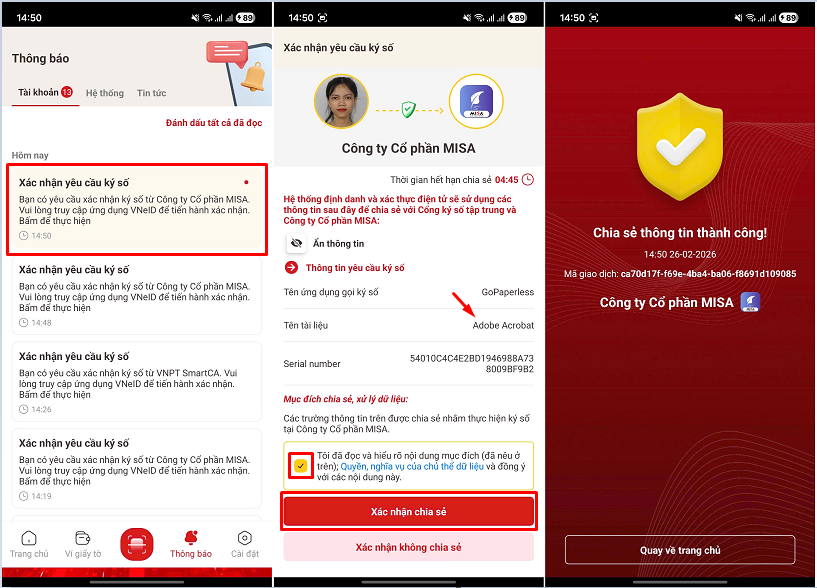
Step 11: Open the VNeID application on your mobile device.
- Go to Notifications → Select Digital signing request.
- Check the information
- Agree to the terms:
- “I have read and understood the purpose, rights, and obligations...”
- Click Confirm.
- The app displays Information shared successfully.
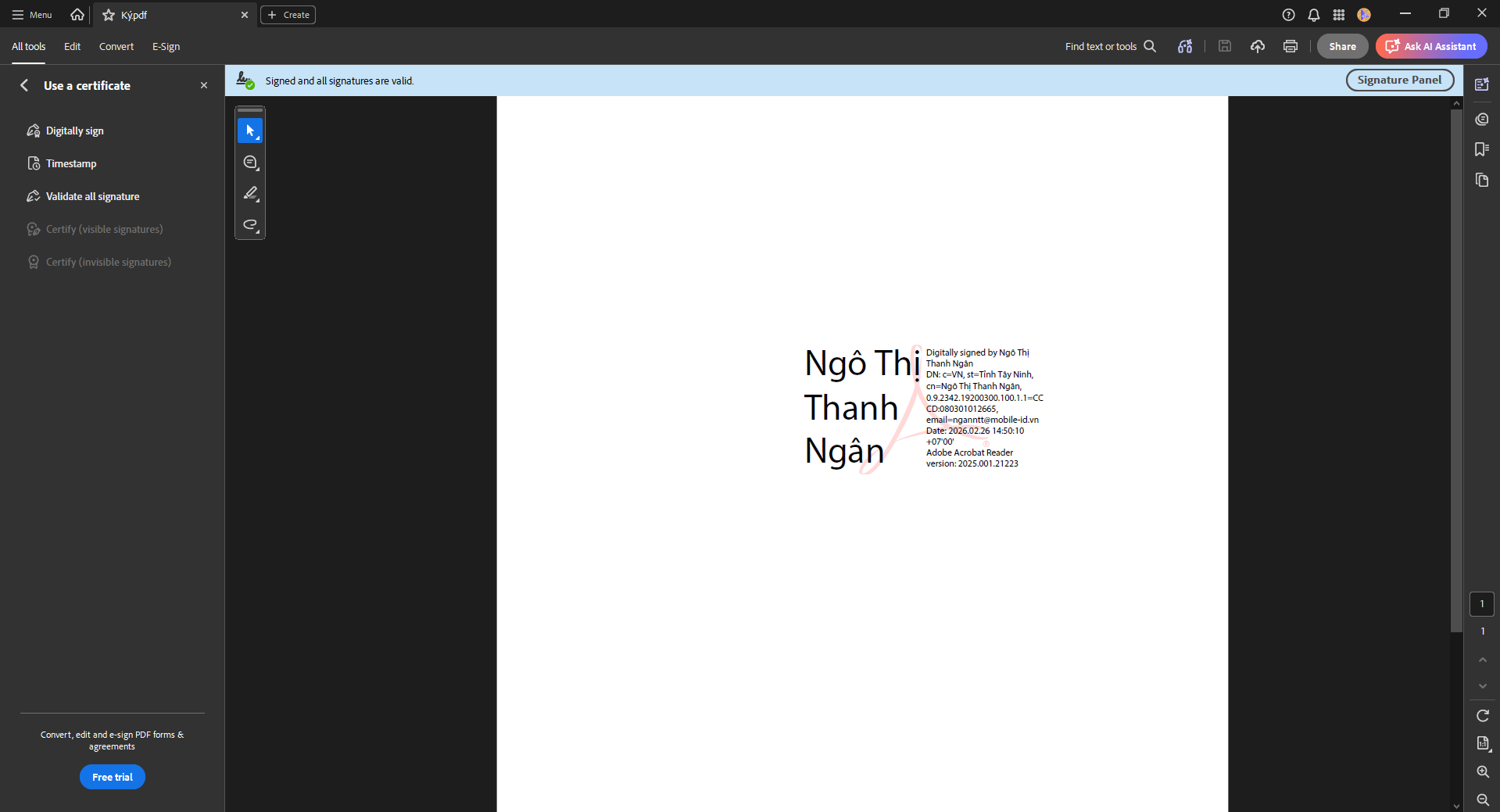
Step 12: Complete signing
- “Signing completed successfully.”

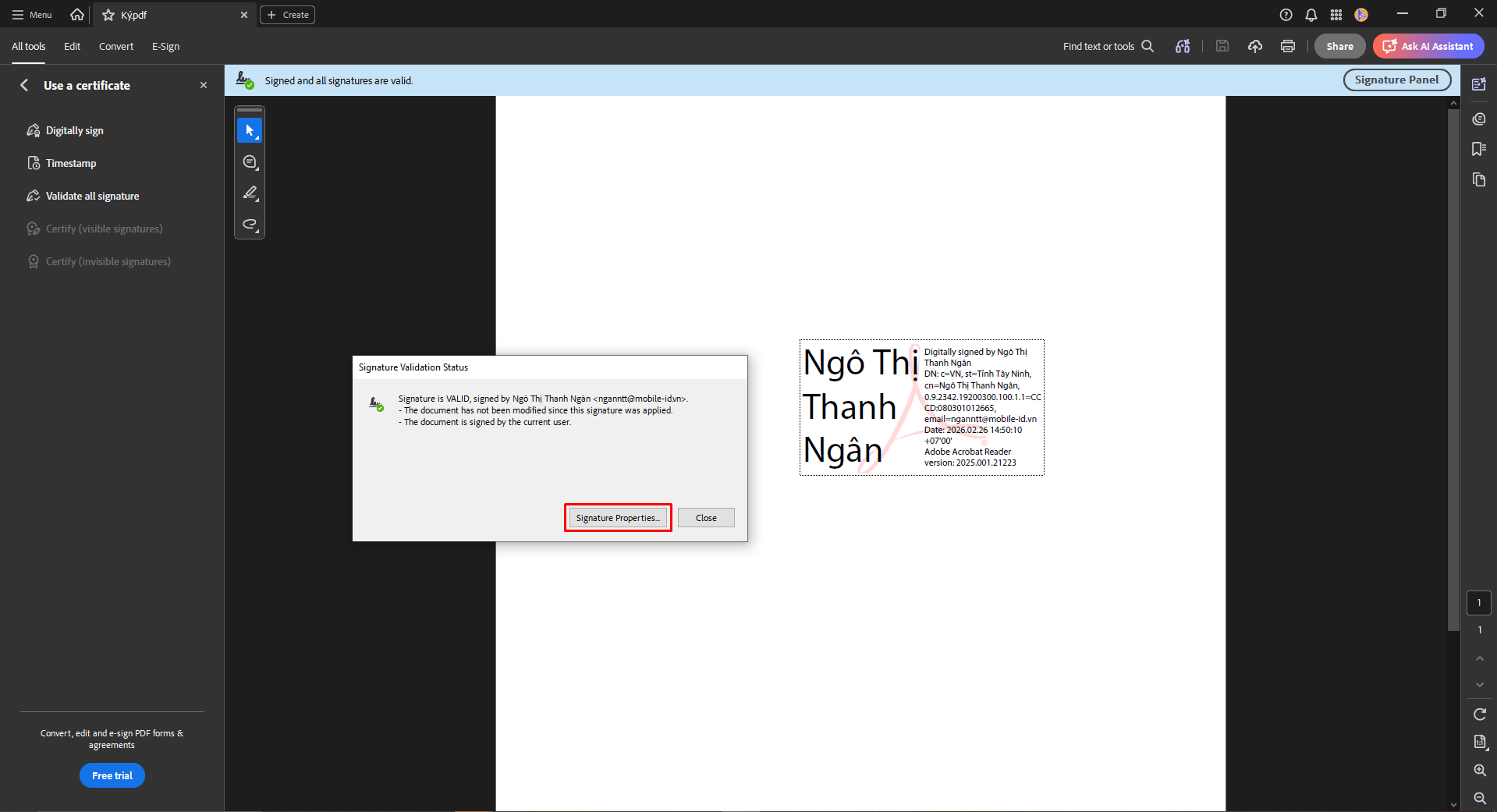
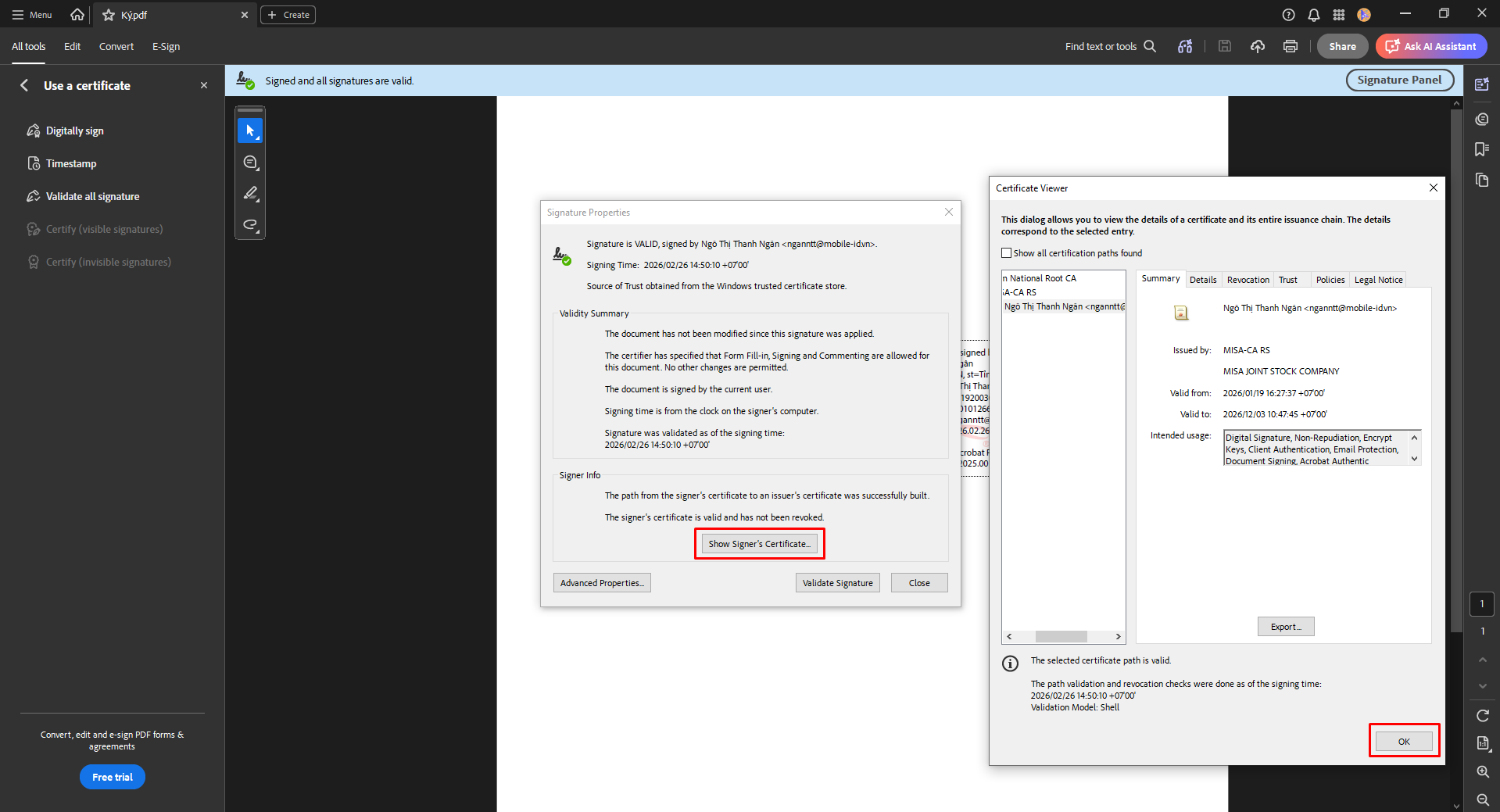
Double-click the signature to view details.
PreviousSign with Foxit Reader
NextPricing